1. Troubleshooting & Getting Help
Most real-world problems are simulator connection issues, and the detailed checklists for those live in Game-Specific Troubleshooting. This page is the map: how to tell what kind of problem you have, where the diagnostics are, and how to get help.
1.1 Status Area
The main window’s Application Status box narrows the problem immediately:
- Running - the sim is connected and telemetry is flowing. If something feels wrong, it is configuration, not connectivity; check the loaded settings via Current Aircraft, Matched Model, and Active Profile.
- Paused - telemetry stopped arriving, or the sim is paused.
- Error - a configuration problem. The error message below Active Profile names the device, and describes the condition and how to resolve it. If there are several errors, the box shows one at a time, and the 1.4 exception viewer lists all of them. A corrected error clears only while the sim is running and not paused. See Configuration errors.
See Device/Instance Status Indications for details. The Monitor tab shows the raw telemetry and every active effect in real time, with the current intensity of each effect. Use it to confirm what TelemFFB is actually receiving and playing. See Monitor Tab.
1.2 Device Problems
The device icons show the state of each device, in the Active Devices panel or wherever you chose to show them:
- Yellow - the device dropped off. TelemFFB retries on its own and recovers when the device returns, on the same USB port or a different one.
- Red - the configured device was not found at startup, or the instance has an error. Check the USB connection and the device’s power. TelemFFB picks the device up as soon as it appears; a restart is not needed.
- Grey - no device is configured for that role. See Devices and Instances.
After a power cycle the firmware has lost everything it held in memory. TelemFFB sends the active VPforce Configurator profile, the gain overrides and the deadzone again. See Device recovery.
If another VPforce device is connected while the configured one is missing, TelemFFB asks once whether to use that device instead.
1.3 Simulator Connection Problems
Verify the sim is enabled in Connecting Your Simulator, then use the detailed per-sim checklists:
- DCS - FFB not working · Not receiving telemetry · Autopilot misbehaving
- MSFS - Axis flutter / controls not responding · A feature doesn’t work with a specific aircraft
- IL-2 - Not receiving telemetry
- X-Plane - Not receiving telemetry
- BMS - Falcon BMS
1.4 Exception Tracking & Reporting
TelemFFB tracks runtime errors as they happen. When an error is logged, a red Errors counter appears in the status bar along the bottom edge of the main window; it is hidden when there is nothing to see. Click it to open the Logged Exceptions viewer:
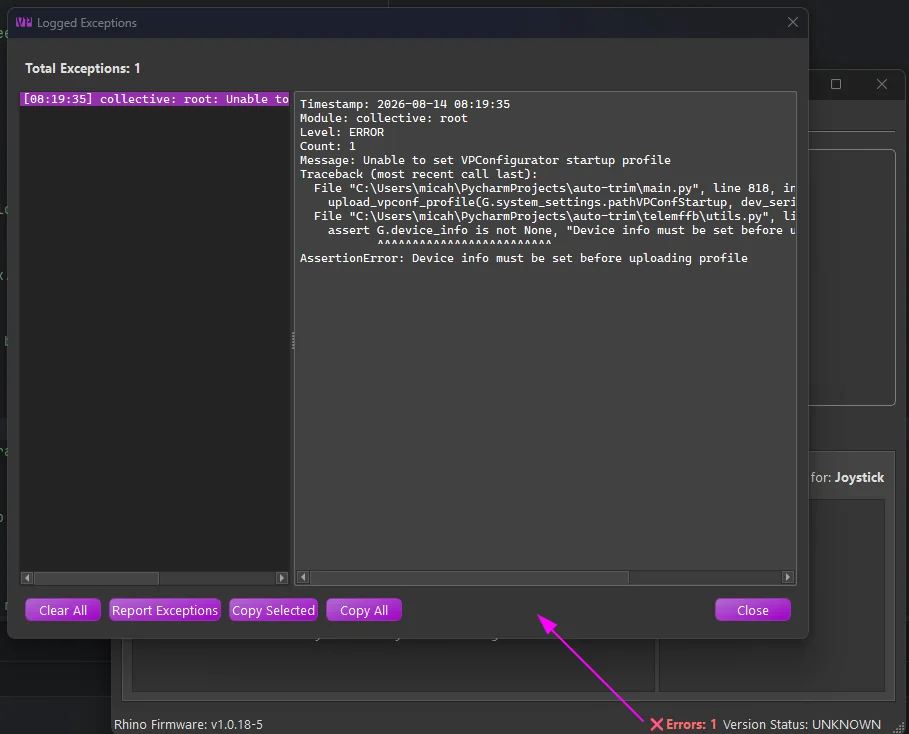
The left pane lists the errors from this session (up to 100); selecting one shows the full detail (timestamp, module, message, and complete traceback) in the right pane. Two behaviors keep the list readable:
- Deduplication - repeated occurrences of the same error collapse into a single entry with an occurrence count, rather than flooding the list.
- Child forwarding - in multi-device setups, errors raised by child instances are forwarded to the master, so every device’s errors are visible in one place. The module prefix on each entry tells you which instance raised it.
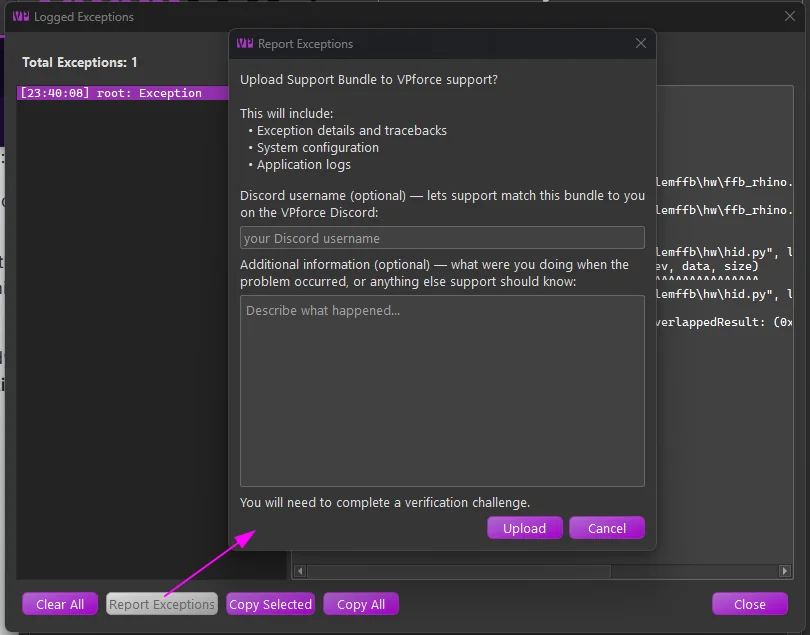
The buttons along the bottom: Copy Selected / Copy All put the error text on the clipboard (handy for pasting into a Discord post), Clear All empties the list and hides the status-bar counter, and Report Exceptions submits the errors to VPforce directly:
A report is not a request for help
Uploading a bundle does not open a conversation. Nobody at VPforce watches the uploads and reaches out. The bundle exists so that when you post your problem on the #TelemFFB-User channel, support can pull up the logs that go with your message. Post on Discord, and mention that you uploaded a bundle.
The dialog has two optional fields:
- Discord username - lets support match your uploaded bundle to you on the VPforce Discord. The name also becomes part of the uploaded file name, so it is visible right in the support channel. TelemFFB remembers it until you close the application; it is never saved to disk.
- Additional information - describe what you were doing when the problem occurred, or anything else support should know. Your notes travel inside the bundle, where support reads them before digging into the logs.
Report Exceptions builds a support bundle (the exception details and tracebacks, your system configuration, the application logs, and anything you entered above) and uploads it to VPforce support. After the upload, a verification page opens in your browser; the report is only submitted once you complete the challenge there.
1.5 Reading the Log
Log → Open Console Log shows the live log. Two kinds of entries help with specific problems:
Main thread stalled- the main window stopped responding for three seconds. TelemFFB writes what every part of the application was doing at that moment, once per stall, and notes when the window recovers. Include the log in a support request; these entries name the cause. Dragging a window or holding a title-bar button does not trigger them.axis contention(MSFS) - with Axis Control enabled, TelemFFB checks whether something else is also moving the axis it drives. A line markedCONTENDEDnames an axis that a second source is writing, which is usually a control binding left mapped inside MSFS, or an external tool; it is logged when the control keeps jumping in ways TelemFFB did not command, which you would also see as the control flopping in the cockpit. A line markedcleanmeans no second source was seen. Anunverifiedline names an axis TelemFFB watches but does not judge yet.
1.6 Getting Help
The single most important factor in getting your problem solved quickly is how you ask. Read How to Get Effective Support; it is short, and following it usually turns a multi-day back-and-forth into a single exchange. The essentials:
- Describe exactly what happens and when - “stick goes limp with no centering force in the F-16 after AP engage”, not “FFB doesn’t work”. One problem per request, and say what you have already tried.
- Include VPforce Configurator screenshots - Effects, Settings, and Debug tabs. Without them, diagnosis is guesswork.
- Attach a TelemFFB support bundle: Help → Create Support Bundle produces a timestamped zip of your logs, system settings, and user config; it usually contains everything needed for diagnosis.
- Post on the #TelemFFB-User channel of the VPforce Discord.
For reference: System → Open Config/Log directory opens the folder holding logs and your settings (%LOCALAPPDATA%\VPForce-TelemFFB); older logs are archived into daily zip files.
1.7 FAQ
Q: Does DCS native force feedback need TelemFFB running?
A: No. DCS sends its native FFB effects directly to the device. TelemFFB adds supplemental effects on top; see the DCS guide.
Q: My antivirus flags the TelemFFB executable. Is it safe?
A: This is a known false-positive pattern with PyInstaller-packaged applications. See TelemFFB and Antivirus Software.
Q: How do I update TelemFFB without losing my settings?
A: Extract the new version over (or beside) the old one. Your settings live in %LOCALAPPDATA%\VPForce-TelemFFB and the registry, not in the application folder, so they survive updates.
Q: Running from source and the release build: separate settings?
A: No, they share the same configuration. Changes made in one carry over to the other.