1. How Settings Work
TelemFFB separates system settings (how the application runs) from aircraft settings (how each aircraft feels). Understanding how aircraft settings are resolved makes the rest of the manual, and the Settings tab, much easier to follow.
1.1 Where Settings Are Stored
System settings are stored in the registry at:
HKEY_CURRENT_USER\Software\VPforce\TelemFFB
Everything configured in the System→System Settings dialog lives here. Do not edit the registry manually. To back up or migrate the system settings, use the dialog’s File menu export and import instead.
Aircraft settings are stored in the user appdata folder:
%LOCALAPPDATA%\VPForce-TelemFFB
The user configuration file here holds only your changes. The full catalog of settings and their default values ships inside the application as a defaults file.
1.2 The Layers
When an aircraft loads, every setting is resolved through layers. The most specific layer that defines a value wins:
- Application defaults - the bundled defaults file defines every available setting for every simulator and device type, with sensible baseline values.
- Class defaults - defaults per aircraft class (PropellerAircraft, JetAircraft, TurbopropAircraft, GliderAircraft, Helicopter, and so on). A helicopter and a jet start from different baselines automatically.
- Your sim-wide overrides - values you configured at the sim level in the offline editor, or promoted to a sim-level override. They apply to every aircraft in that simulator.
- Your class-wide overrides - values you configured at the class level in the offline editor, or promoted to a class-level override. They apply to every aircraft of that class.
- Shipped aircraft profiles - TelemFFB ships tuned profiles for many specific aircraft across all supported sims. Aircraft are matched by a match string, so different liveries of the same aircraft match the same profile. When several match strings fit an aircraft, the most specific one wins, and only that one profile contributes. The Matched Model field in the status area shows which match string won. See How TelemFFB Matches an Aircraft.
- Your aircraft overrides - changes you make for the specific aircraft. These always win.
Note where the shipped profiles sit: a shipped profile’s aircraft-specific tuning takes precedence over your sim-wide and class-wide overrides. Only an override for the specific aircraft outranks it.
Your configuration file is a delta: it stores only the settings you changed, at the level you changed them. Everything else continues to follow the layers below.
Updates preserve your changes
Unmodified settings follow the application defaults, so a TelemFFB update brings improved default values and newly added settings without touching anything you tuned. Any override can be reverted to the inherited value with one click.
1.3 Reading the Settings Tab
The Settings tab shows the resolved value of every setting for the loaded aircraft, whichever layer it came from. The interface tells you where a value comes from:
- A setting you changed for this aircraft shows an x icon. Click it to remove your override and fall back to the inherited value.
- Right-click the x icon to promote your value to the class or sim level, so it applies to every aircraft of that class or sim. An information icon then marks the setting; hover it to see which level the override lives at.
- Right-click the information icon to remove the class or sim override. Every aircraft that used it goes back to the value below it. You can do this from a loaded aircraft; you do not have to open the offline editor.
See Modifying settings in real time for a visual walkthrough of these controls.
1.4 Offline Editor
The offline editor edits sim defaults, class defaults, or a specific aircraft and profile without that aircraft being loaded, using the same main-window settings interface as real-time per-aircraft configuration. To open it, choose Offline Editor/Effect Preview from the Profiles menu. With an aircraft loaded, the Offline/Preview Mode button on the Settings tab opens the editor on that aircraft directly.
In the offline editor, most effects can be played on the device at their configured strength. See Effect Preview.
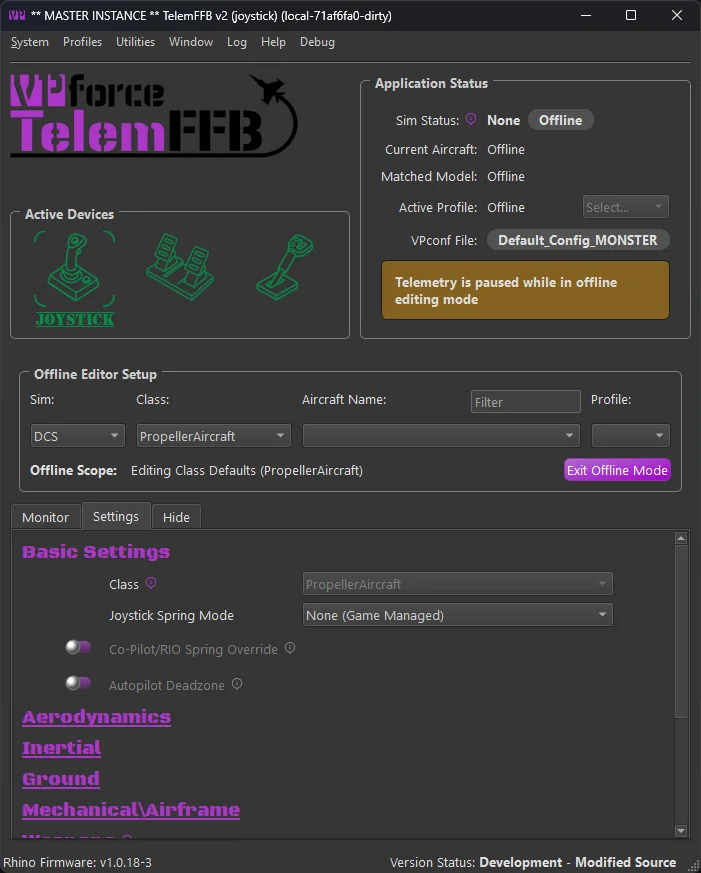
Use the selection boxes in the Offline Editor Setup area to select a sim, class, aircraft or user profile to modify.
- To modify the default settings for the entire simulator, only select the desired Sim from the pulldown.
- To modify the class defaults for a given sim, select both the simulator and the class.
- Further, you can choose a specific aircraft and profile to modify offline as well.
The editor shows only the settings that apply at the selected level of the hierarchy. With only a sim selected, class-specific settings do not appear; Prop Rumble or Rotor Rumble, for example, only appear once a class that has them (propeller aircraft, helicopters) is selected.
1.5 Profiles
An aircraft can have more than one settings profile. The Active Profile field in the status area shows which one is loaded.
- Every aircraft has a base profile. You can create additional named profiles for the same aircraft (for example an aerobatics setup and a cruise setup) and switch between them.
- Profiles can be exported and imported for sharing.
Profile creation, selection, import and export are covered in Aircraft Profiles.
1.6 Adding an Aircraft That Has No Profile
If TelemFFB does not recognize a loaded aircraft, it gets only default settings, which is rarely a good effect setup. The aircraft class decides which spring model, effect set, and class defaults apply. MSFS reports a basic aircraft type, so an unknown MSFS aircraft starts with the defaults of that class; a helicopter gets the Helicopter class defaults, for example. In the other simulators TelemFFB cannot know the class until you choose it.
The controls on the Settings tab are disabled for an unknown aircraft, because it has no profile to store a change in. Create a profile for the aircraft, choosing its class, with the Add New Aircraft wizard.