2. The DirectInput Tap
DCS, IL-2, and Falcon BMS compute their own force feedback and send it to the stick over DirectInput. TelemFFB has no involvement in the game-generated forces and effects being played on the device: the game drives the device directly, and TelemFFB adds its telemetry-driven effects on top.
The DirectInput Tap captures the effects the game computes and sends them to TelemFFB, which renders them on the device. The game cannot detect the difference: it continues to compute its effects, and everything it exports continues to work.
2.1 Why Use the Tap
With the tap active, the game’s own effects become visible and adjustable in TelemFFB:
- Each game effect type gets an enable toggle and a gain slider - controls the games themselves do not offer.
- The game’s spring can be corrected per axis: swap axes, invert, and scale, with a live force readout on the sliders.
- The game’s effects appear in the effects monitor by name, so you can see exactly what the game is sending at any moment.
2.2 Supported Simulators
| Simulator | Joystick | Pedals |
|---|---|---|
| DCS | Yes | - |
| IL-2 Great Battles | Yes | - |
| IL-2 Korea | Yes | Yes |
| Falcon BMS | Yes | - |
IL-2 Korea is the only simulator in this group that renders force feedback to pedals.
2.3 How It Works
TelemFFB places a small wrapper library (dinput8.dll) in the game’s folder, and the game loads it in place of the system DirectInput library. The wrapper passes everything through unchanged, with one exception: the force-feedback effects of the devices you choose to capture. Those effects go to TelemFFB instead of the device.
Start TelemFFB before the game
The wrapper decides once, when the game starts, whether to engage. It only engages if TelemFFB is already running. If you start the game first, the wrapper stays inactive for that session; restart the game with TelemFFB running.
This check is the RequireTelemFFB setting in dinput8.ini, and it is true by default for a reason: it makes the wrapper fail safe. Captured devices only work while TelemFFB is running to render their forces, so a wrapper that engaged unconditionally would leave those devices with no force feedback at all in any session without TelemFFB. With the check in place, the wrapper goes inert instead, and the game’s own force feedback works normally; this prevents FFB from appearing “broken” if you happen to run the simulator without TelemFFB for any reason.
Setting it to false removes the start-order requirement, at exactly that risk: whenever the game runs without TelemFFB, the captured devices’ forces are swallowed with nothing re-rendering them, and nothing on screen says why. Leave it true unless you accept that trade.
2.4 Setting It Up
- Open System → System Settings and go to the simulator’s page on the Simulator Setup tab.
-
Enable the DirectInput Tap toggle. A status panel appears below it. The panel locates the game install automatically (from the configured path, the registry, or a Steam library scan) and shows the wrapper state for each of the game’s executable folders.
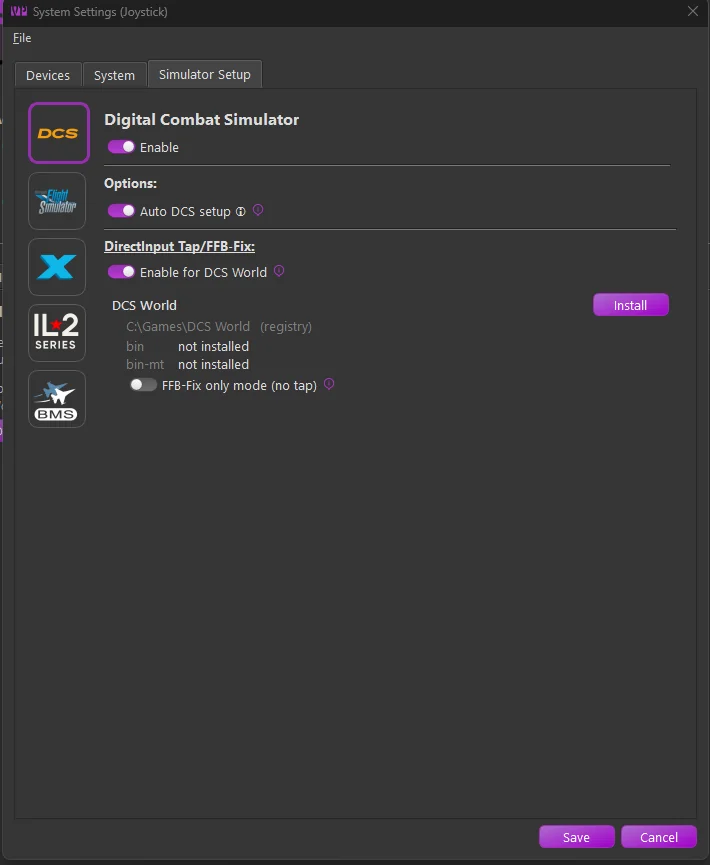
The screenshots on this page are from DCS, whose section is labelled DirectInput Tap/FFB-Fix and carries one control the others do not: the FFB-Fix only mode (no tap) toggle, described under 2.5 FFB-Fix only mode. Leave it off for the tap.
-
Click Install.
-
Choose which devices the tap captures in the device dialog that opens.
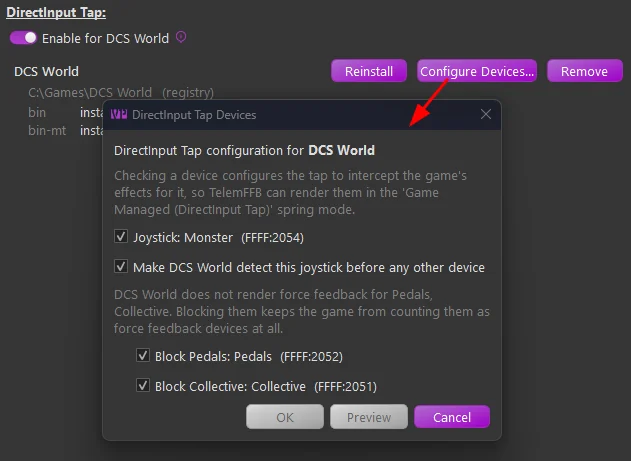
-
TelemFFB writes both files beside each of the game’s executables (for DCS, both
binandbin-mt): thedinput8.dllwrapper, and adinput8.iniconfiguration carrying capture rules for the devices you chose. Setup is complete; nothing further is required. The panel then shows the installed state, with each folder’s wrapper version and configuration: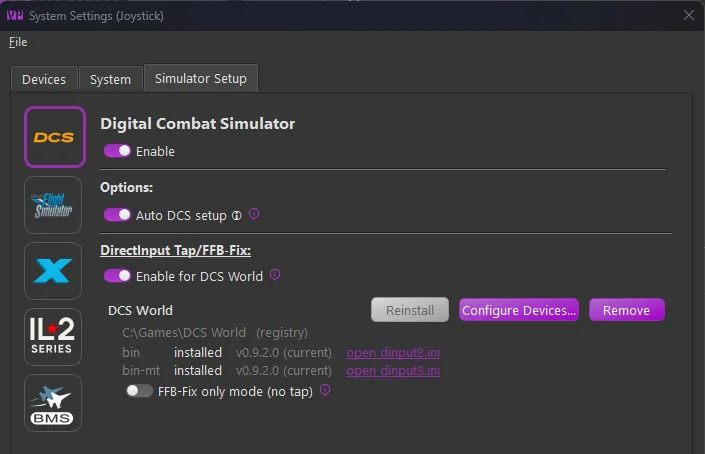
Games installed under Program Files
Windows may deny writes to the game’s folder for a game installed under Program Files. TelemFFB tells you when this is the cause. Run TelemFFB as administrator once to install, or grant the folder write access.
2.4.1 If a dinput8.dll Is Already Installed
Some game folders already carry a dinput8.dll wrapper. TelemFFB recognizes the common case, the community dcs-force-feedback-fix wrapper that the tap is built from: the panel reports it as an ffb-fix wrapper, and Install offers an upgrade.
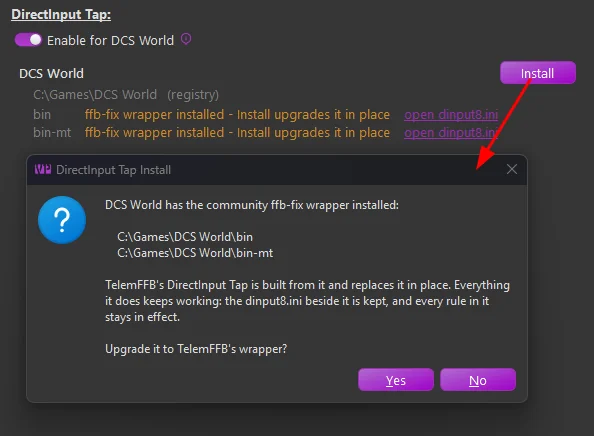
TelemFFB’s wrapper is a superset of the original ffb-fix wrapper: every rule in the existing dinput8.ini (per-device block, allow, and scaling rules, [DeviceOrder]) keeps working exactly as before, so the upgrade is safe. The file is kept as it is, with two exceptions: TelemFFB adds a tap rule for the joystick device selected in TelemFFB, and offers block rules for any configured pedal or collective devices the file does not already cover. Rules you already wrote are recognized, not duplicated - a name rule that already blocks your pedals is left alone.
After a confirmed upgrade, the device configuration opens by itself with the proposed additions pre-selected - the same dialog and Preview as 2.4.2 Configure Devices - and nothing is added to the file until you confirm it there. Cancelling leaves the file exactly as it was.
A dinput8.dll that TelemFFB cannot identify is reported as “another dinput8.dll installed”, and Install asks the more careful question. If the DLL belongs to a different mod or utility, replacing it will stop that tool from working.
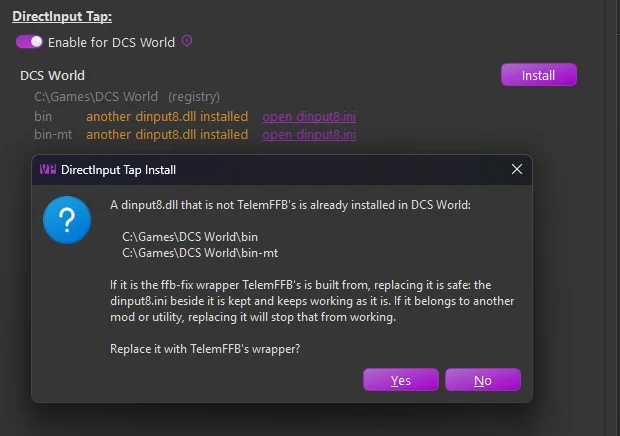
2.4.2 Fresh Install or Existing Configuration
Which path Install takes depends on whether the game’s folders already hold a dinput8.ini:
- On a fresh install (no configuration anywhere), the device dialog opens automatically as part of Install, as in the steps above.
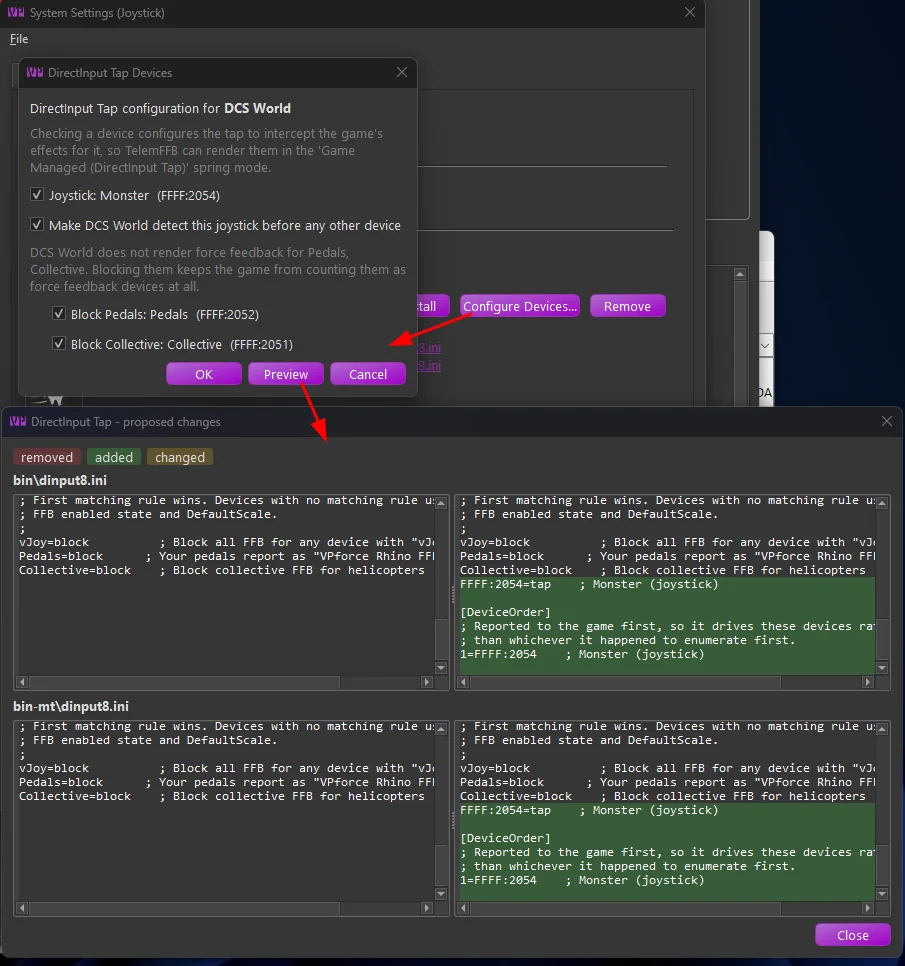
- Where a configuration already exists (an earlier install, or a file you wrote yourself), Install and Reinstall lay down only the wrapper and leave the file alone. To choose or change the captured devices, use Configure Devices… on the panel. The one exception is a recognized ffb-fix upgrade, which opens the device configuration for you as described above.
Configure Devices… opens the same device dialog over the existing configuration. Preview shows the proposed changes as a side-by-side diff of each folder’s dinput8.ini before anything is written; OK applies them immediately. Only the lines you were asked about change; every rule and comment you wrote yourself is kept.
2.5 FFB-Fix Only Mode (DCS)
DCS hands force feedback to the devices it enumerates first, and Windows caches that order. A vJoy device or a set of FFB pedals reported ahead of your stick can take the effects the stick should have received - the game creates them on the wrong device, and your stick stays quiet. This is the problem the community dcs-force-feedback-fix wrapper was written to solve, and TelemFFB’s wrapper is built from it.
The tap solves it as a side effect, because captured effects are routed by device rather than by enumeration order. FFB-Fix only mode offers the other half on its own: the wrapper blocks the devices DCS should not drive and puts your joystick first, and then stays out of the way. DCS drives the stick directly, exactly as it would with no wrapper present at all.
Choose it if you want your stick’s force feedback fixed while leaving the game’s forces entirely to the game.
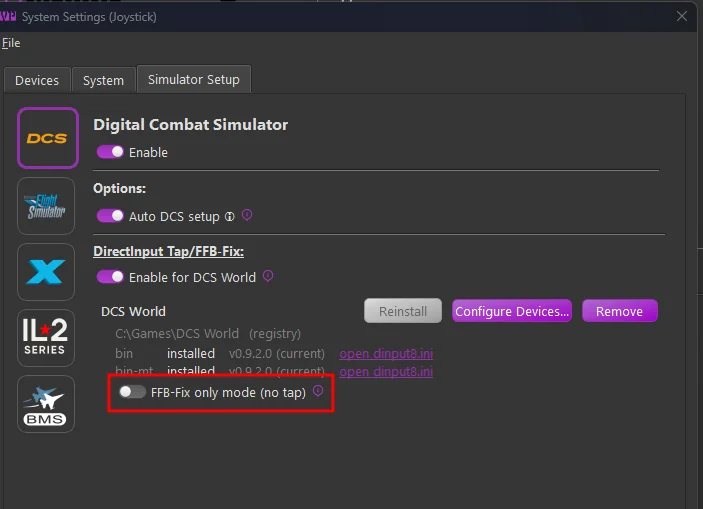
Only DCS offers this. IL-2 and Falcon BMS identify devices by their configured position rather than by enumeration order, so there is nothing for the fix to do there and no toggle appears.
2.5.1 Limitations
FFB-Fix only mode installs no capture rules, so everything the tap makes possible is unavailable:
- No per-effect enable toggles or gain sliders for the game’s effects.
- No axis corrections for the game’s spring, and no live force readout.
- The game’s effects do not appear in the effects monitor.
- Joystick Spring Mode must stay on a TelemFFB mode or None (Game Managed). Game Managed (DirectInput Tap) needs a tap that is capturing the device, and in this mode nothing is captured.
TelemFFB’s own telemetry-driven effects are unaffected and continue to work.
2.5.2 Choosing and Changing the Mode
Set the toggle before installing: it decides which configuration Install writes.
Afterwards the toggle still moves, but flipping it changes nothing on its own - it states an intent, and the panel says what is actually installed underneath it: installed as: DirectInput Tap - use Configure Devices to change it. Switching is a rewrite of the configuration, so Configure Devices… is where it happens.
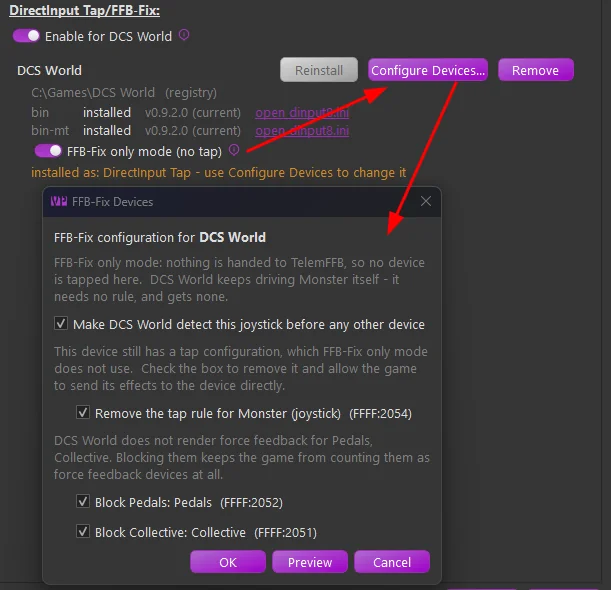
In FFB-Fix only mode the dialog offers no capture rules at all. Instead it proposes exactly what the fix needs, each already ticked:
- Make the game detect this joystick before any other device - the
[DeviceOrder]entry that puts your stick first. - Remove the tap rule for any device still carrying one. Removing them is the reason to be in this mode; untick one to keep it.
- Block the pedals and collective, so the game stops counting them as force-feedback devices at all.
Moving the other way, back to the tap, the dialog offers capture rules as usual.
What the panel reports is read back from dinput8.ini itself, not from the toggle. A file you hand-edited, or one left behind by an earlier choice, is described as it actually is.
2.6 Rendering the Game’s Spring
The tap relays the game’s spring, but rendering it is a per-aircraft choice. On the Settings tab, set Joystick Spring Mode to Game Managed (DirectInput Tap).
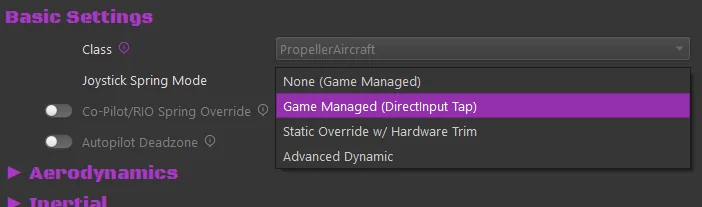
For IL-2 Korea pedals, set Pedal Spring Mode to the same mode on the pedals instance. IL-2 Sturmovik’s pedal list does not offer it, because Great Battles has no pedal force feedback.
You do not have to select the mode aircraft by aircraft. Set it at the simulator or aircraft-class level with the offline settings editor, and it becomes the default spring mode for every aircraft in that simulator or class. Individual aircraft can still override it. Setting a class or sim-wide value also works from a loaded aircraft: right-click the x icon on the setting and promote it, as described in How Settings Work.
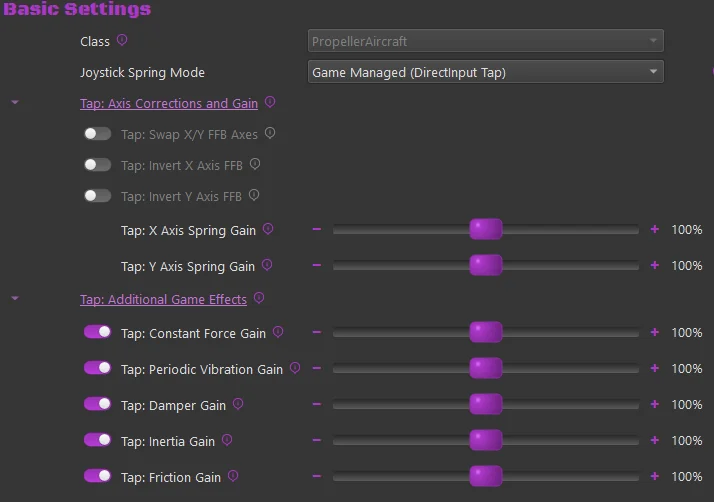
Selecting the mode reveals two groups:
- Tap: Axis Corrections - Swap X/Y FFB Axes swaps which game axis lands on which device axis; Invert X Axis FFB and Invert Y Axis FFB reverse an axis whose forces push the wrong way.
- Tap: Spring Gain - X Axis Spring Gain and Y Axis Spring Gain scale the game’s spring force. 100% renders it exactly as the game commanded. The percentage on the slider handle is the current rendered force; pinned at 100% means the gain is clipping at the device’s maximum.
The tap groups, like the tap spring mode itself, are only offered while the tap is enabled for the sim in System Settings, and on DCS not in FFB-Fix only mode. Values set while a group was shown are kept.
2.6.1 Advanced Dynamic Through the Tap
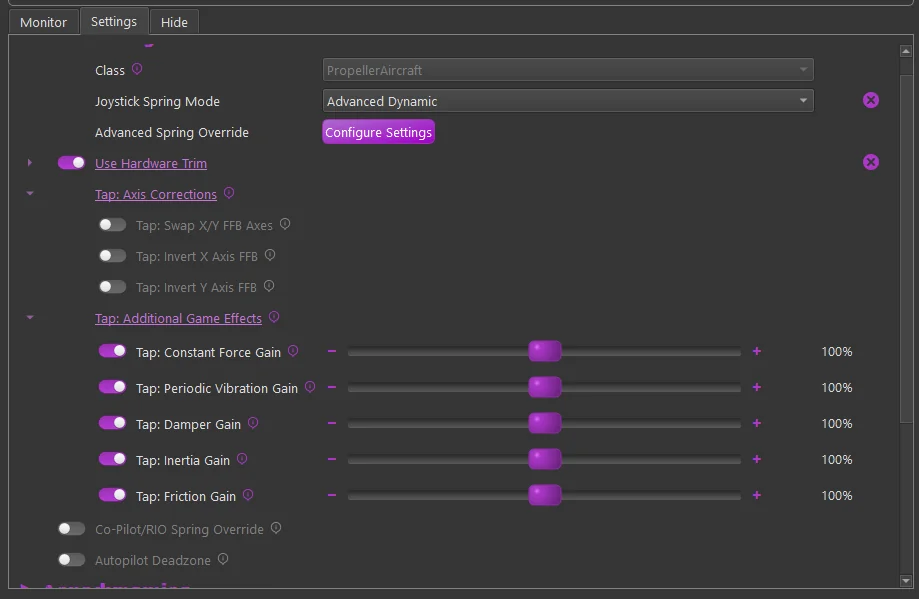
Advanced Dynamic (see Advanced Spring & G-Force Curves) also renders through the tap when the game’s spring cannot reach the device directly: always on a DirectLink device, and on a VPforce device while the tap is capturing it. The airspeed curve sets the spring force, the game’s own center movements come through the tap as usual, and the mode’s hardware trim and G-force offset shift that center. The game’s other effects are rendered exactly as in Game Managed (DirectInput Tap), and the Tap: Axis Corrections and Tap: Additional Game Effects groups apply in this mode too. The spring gain group is not offered, since the curve sets the force.
2.7 Other Game Effects
The Tap: Additional Game Effects group controls everything else the game sends, each type with its own enable toggle and gain:
- Tap: Constant Forces - stick kicks, recoil, and similar pushes.
- Tap: Periodic Vibrations - rumble, buffet, and other oscillations.
- Tap: Damper Effects, Tap: Inertia Effects, Tap: Friction Effects - the game’s condition effects.
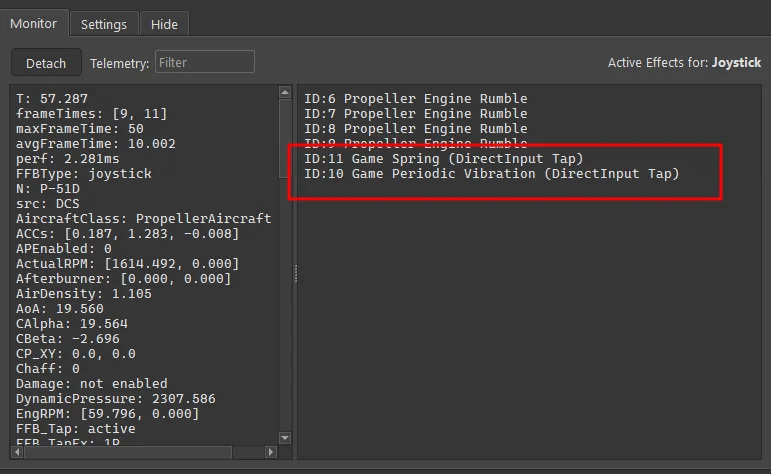
Captured effects appear in the effects monitor as Game Spring (DirectInput Tap), Game Periodic (DirectInput Tap), and so on, alongside TelemFFB’s own effects. Like TelemFFB’s own effects, they show their current intensity, or their gain per axis. See Active effects.
For a wire-level view of what the game sends, open Utilities → DirectInput Tap Monitor…. It shows whether the game is publishing through the tap, which devices the wrapper captured, and the raw DirectInput values (±10000) of each effect slot. It keeps a time-stamped log of each change; click Save Log… to save it for support.
Doubled effects
A game effect and the equivalent TelemFFB telemetry effect can both be enabled at once (the game’s gunfire rumble plus TelemFFB’s gunfire effect, for example). If an effect feels doubled, disable one of the pair.
2.8 Misconfiguration Warnings
TelemFFB reports tap misconfigurations on the error line of the effects area while you fly, with the cause and the fix:
- Spring mode is None (Game Managed) while the tap is capturing the device. The tap prevents the game’s spring from reaching the device, so this combination leaves no spring at all. Select the tap spring mode, or remove the device from the capture list.
- The tap spring mode is selected but the tap is not capturing, usually because you started the game before TelemFFB - or, on DCS, because the wrapper is installed in 2.5 FFB-Fix only mode, which captures nothing by design.
The System Settings dialog also warns at configuration time when a selected device needs a tap rule that no enabled simulator provides.
2.9 The Configuration File
TelemFFB writes a dinput8.ini configuration beside the wrapper in each game folder. It generates the file once, in the wrapper’s own documented format, and afterwards only adds to it (when your device selection changes, for example). It never rewrites existing content, so you can edit the file freely.
- Device rules are keyed by USB ids (
FFFF:2054=tap), so they survive device renames. - The wrapper writes a log for each game to
%LOCALAPPDATA%\VPForce-TelemFFB\log\tap, one file per game executable.
2.10 Updates and Removal
TelemFFB ships the wrapper and knows which version each game folder holds:
- The status panel marks an outdated copy with “→ vX available”; Reinstall updates it in place, keeping the configuration. It is available only when there is an update to apply - against a copy already at the shipped version it is greyed out, and the version reads “(current)”.
-
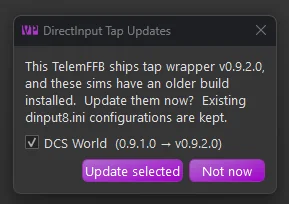
At startup, TelemFFB offers to update every outdated wrapper across your simulators in a single prompt, each simulator deselectable.
-
The same update is available any time from the simulator’s tap status panel, which flags the out-of-date copy:
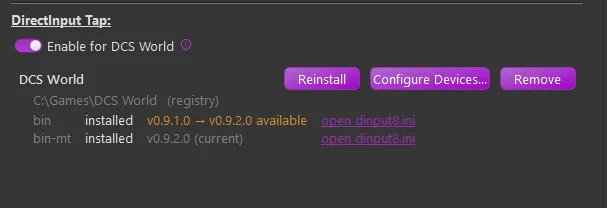
Remove deletes only TelemFFB’s own wrapper. TelemFFB never removes a dinput8.dll that another program installed, and never removes your configuration file. When you disable the tap or the simulator, TelemFFB offers the same cleanup.